You can associate systems with business assets, systems, environments, tables, and columns. You can also view mind map and association statistics.
You need to ensure that:
- Business assets are enabled. You can add new business assets and enable them in the Business Glossary Manager Settings.
- Relationship between system and the asset type is defined. You can define associations and relationships in the Business Glossary Manager Settings.
To associate system with asset types, follow these steps:
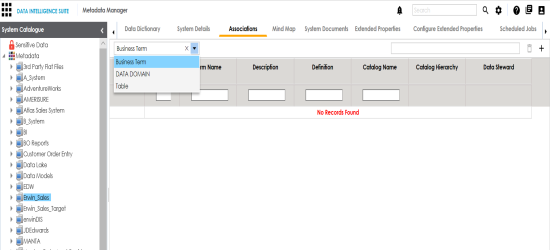
- Under the System Catalogue pane, click the desired system and click the Associations tab.
- Select the asset type from the drop down.
- Click
 .
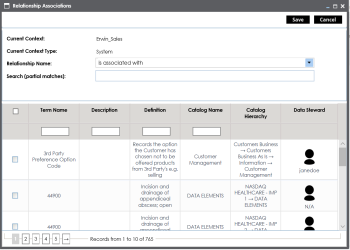
. - Select the Relationship Name, and the asset type.
- Click Save.
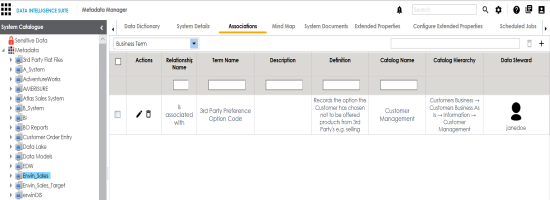
- Use the following options under Actions:
- Edit Association (
 )
)- Use this option to edit the association.
- Delete Association (
 )
)- Use this option to delete the association.
- Edit Association (
The asset is added to the system.
To view mind map, follow these steps:
- Under the System Catalogue pane, click the system.
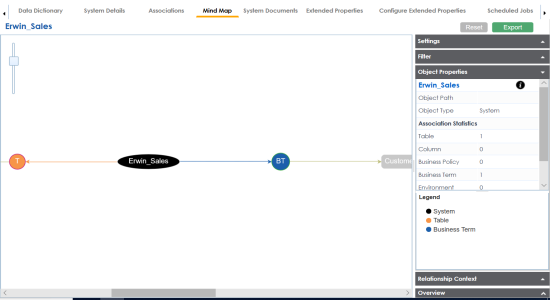
- Click the Mind Map tab.
- Use the following options to work on the mind map:
- Expand (+) / Collapse (-)
- To drill the mind map further, hover over the nodes, use (-) to collapse and use (+) to expand.
- Export
- Use this option to download the mind map to .xlsx format or .jpg format.
- Settings
- Layout: Select the layout as normal or orthogonal.
- Custom Relations: Select the check box to display custom relations.
- Show Relationships: Select the check box to display relationships.
- Filter
- Use this option to filter components of the mind map based on asset types or relationships.
- Object Properties
- It displays the association statistics of the system.
- Relationship Context
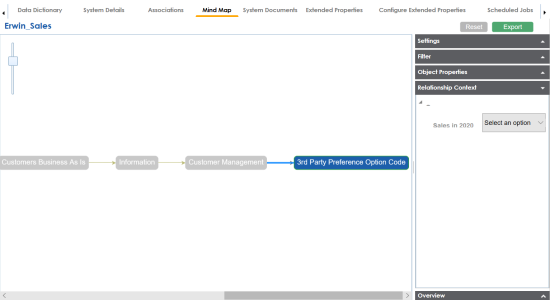
- Use this option to view the relationship context as defined under the Extended Properties in Business Glossary Manager Settings for the relationship between the system and the asset type.
- To view the relationship context, click the connection between the asset type and the system.
- Overview
Use this option to view the overview diagram of the mind map.
|
Copyright © 2020 erwin, Inc.
All rights reserved.
|
|